
Pull Requests and Triggers
Terrateam seamlessly integrates with GitHub’s pull request workflow, allowing you to trigger Terraform operations directly from your pull requests. This section will guide you through the different ways Terrateam can be triggered and how to use pull requests effectively with Terrateam.
Triggering Terrateam
Section titled “Triggering Terrateam”Terrateam supports several methods to trigger Terraform operations.
Opening a Pull Request
Section titled “Opening a Pull Request”When you open a new pull request containing changes to your Terraform code, Terrateam automatically detects the changes and triggers a Plan operation. This allows you to review the proposed changes before applying and merging them into your main branch.
Updating a Pull Request
Section titled “Updating a Pull Request”If you push additional commits to a pull request, Terrateam will re-run the Plan operation to ensure that the proposed changes are up to date.
Commenting on a Pull Request
Section titled “Commenting on a Pull Request”You can manually trigger Terrateam operations by adding comments to your pull request. Terrateam supports the following commands:
terrateam apply: Triggers an Apply operation, applying the changes proposed in the pull request.terrateam plan: Triggers a Plan operation on the pull request.
How Terrateam Evaluates a Pull Request
Section titled “How Terrateam Evaluates a Pull Request”Plans run on the merge result
Section titled “Plans run on the merge result”Before every plan and apply, Terrateam fetches the current tip of the destination branch and merges it into your pull request branch. The operation runs against that merge result, not against your branch on its own.
A Terrateam plan therefore answers the question that matters at apply time: what happens when this pull request lands on the destination branch.
Two things follow from this.
Plan output can change without a new commit. The merge uses the destination branch as it is when the run starts. If a teammate merges another pull request into main, your next plan is computed against the new main, even though your branch has not moved.
A local plan can differ from the Terrateam plan. If your branch is behind the destination branch, terraform plan on your machine sees a different configuration than Terrateam does. The most common symptom is a destroy that appears locally but not in Terrateam. This happens when another pull request added a resource, applied it, and merged. Your branch does not declare that resource yet, so Terraform on your machine finds it in state with no matching configuration and plans a destroy. Terrateam merges the destination branch first, the merged configuration still declares the resource, and no destroy appears.
To reproduce the Terrateam plan on your machine, merge the destination branch first:
git fetch origingit merge origin/mainterraform planIf the merge has conflicts, the run fails. Resolve the conflicts on your branch and push. Terrateam plans again.
Apply runs the plan you reviewed, or it aborts
Section titled “Apply runs the plan you reviewed, or it aborts”Apply does not compute a new plan. Terrateam stores the plan file your plan run produced and applies that exact file. The plan output in the pull request comment is the operation that runs.
This holds only while the stored plan is still valid. An apply needs a valid plan for every directory and workspace it touches. A stored plan is tied to the pull request’s current commit and to its base. A plan stops being valid when any of the following happens:
- You push a new commit. Terrateam plans again automatically when autoplan is enabled.
- The last run for that directory failed.
- Another pull request applied or merged an overlapping directory after your plan was created.
When any directory or workspace in the operation has no valid plan, Terrateam aborts the apply before it starts. Nothing is applied, including the directories whose plans are still valid. Terrateam replies with a Missing Plans comment that names the pull request which superseded your plan. Comment terrateam plan to create a new plan, then apply.
Terrateam never applies a plan it knows is out of date. A superseded plan was computed against a state that no longer exists, and applying it could destroy resources the other pull request has just created. Aborting is the safe outcome, and re-planning is the whole fix.
terrateam apply-force does not bypass this check. It bypasses apply requirements and Gatekeeper gates, not plan validity.
Terraform and OpenTofu enforce the same rule one level down. A saved plan file records the state it was built from, and applying it after that state has moved fails with Saved plan is stale.
See Locks and Concurrency for the protection against two applies running at once, and Plan File Storage for the one setting that opts out of applying a stored plan.
Pull Request Workflow
Section titled “Pull Request Workflow”Here’s a typical workflow when using Terrateam with pull requests:
-
Create a branch
Create a new branch in your repository to work on your Terraform changes. This branch will be used to create a pull request later.
Terminal window git checkout -b <your-branch-name> -
Make changes
Make the necessary changes to your Terraform code in the newly created branch. Commit and push your changes to the remote repository.
-
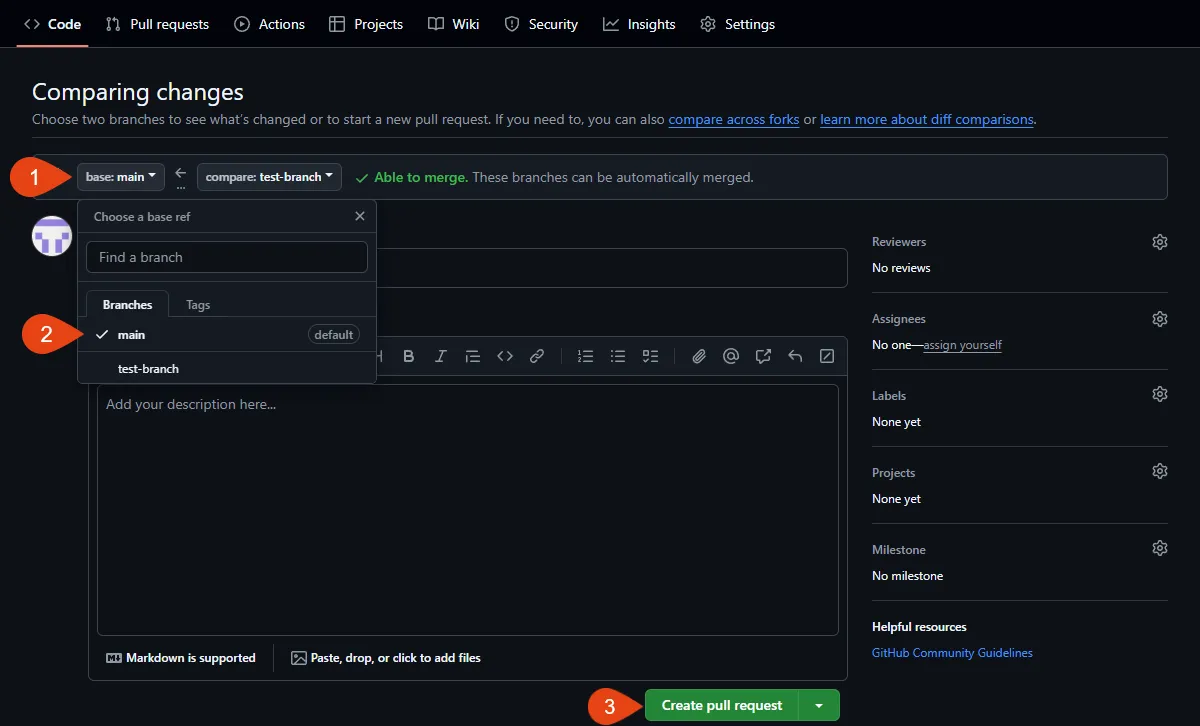
Open a pull request
Open a new pull request from your branch to the main branch. Terrateam will automatically detect the pull request and trigger a Plan operation.
-
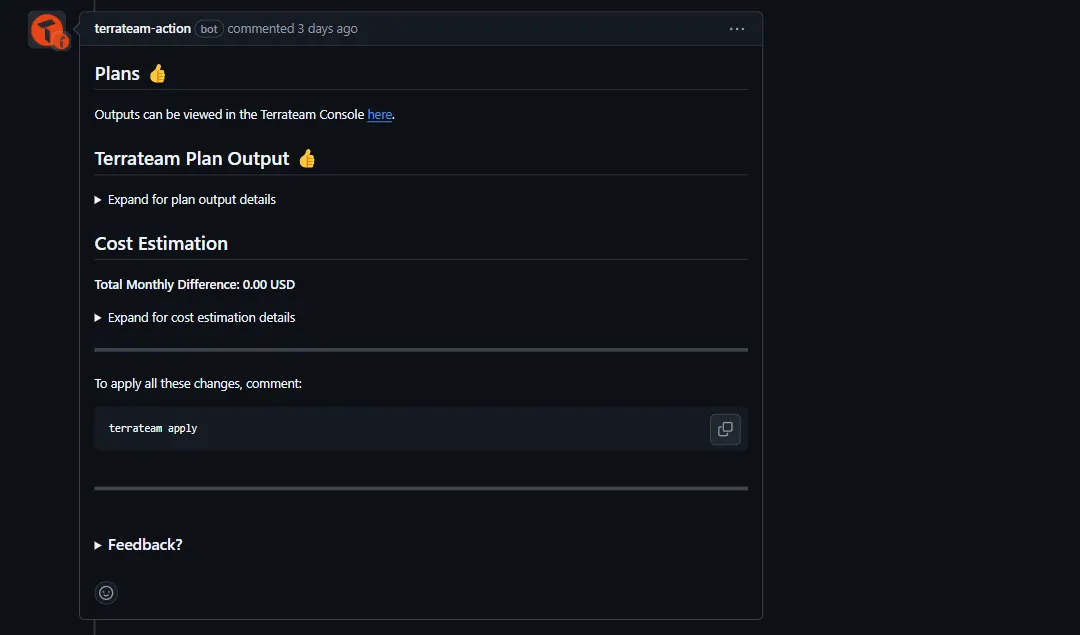
Review the plan output
Terrateam will add a comment to your pull request with the output of the Plan operation. Review the proposed changes and ensure they align with your expectations.
-
Collaborate and iterate
If necessary, collaborate with your team by requesting reviews, discussing changes, and making additional commits to the pull request. Terrateam will re-run the Plan operation each time you update the pull request.
-
Apply the changes
Once you’re satisfied with the proposed changes, you can trigger an Apply operation by commenting
terrateam applyon the pull request. Terrateam will attempt to acquire a lock, apply the changes, and update the pull request with the result.
-
Merge the pull request
After a successful apply, merge the pull request into your main branch to incorporate the changes into your production environment. Terrateam will then release the acquired lock.